How to Reconcile in Xero
Reconciling your bank transactions is one of the most important tasks in Xero. The good news is that Xero makes reconciliation quick and straightforward.
What is reconciliation?
Reconciliation is the process of matching a transaction that appears on your bank statement with the correct transaction in Xero.
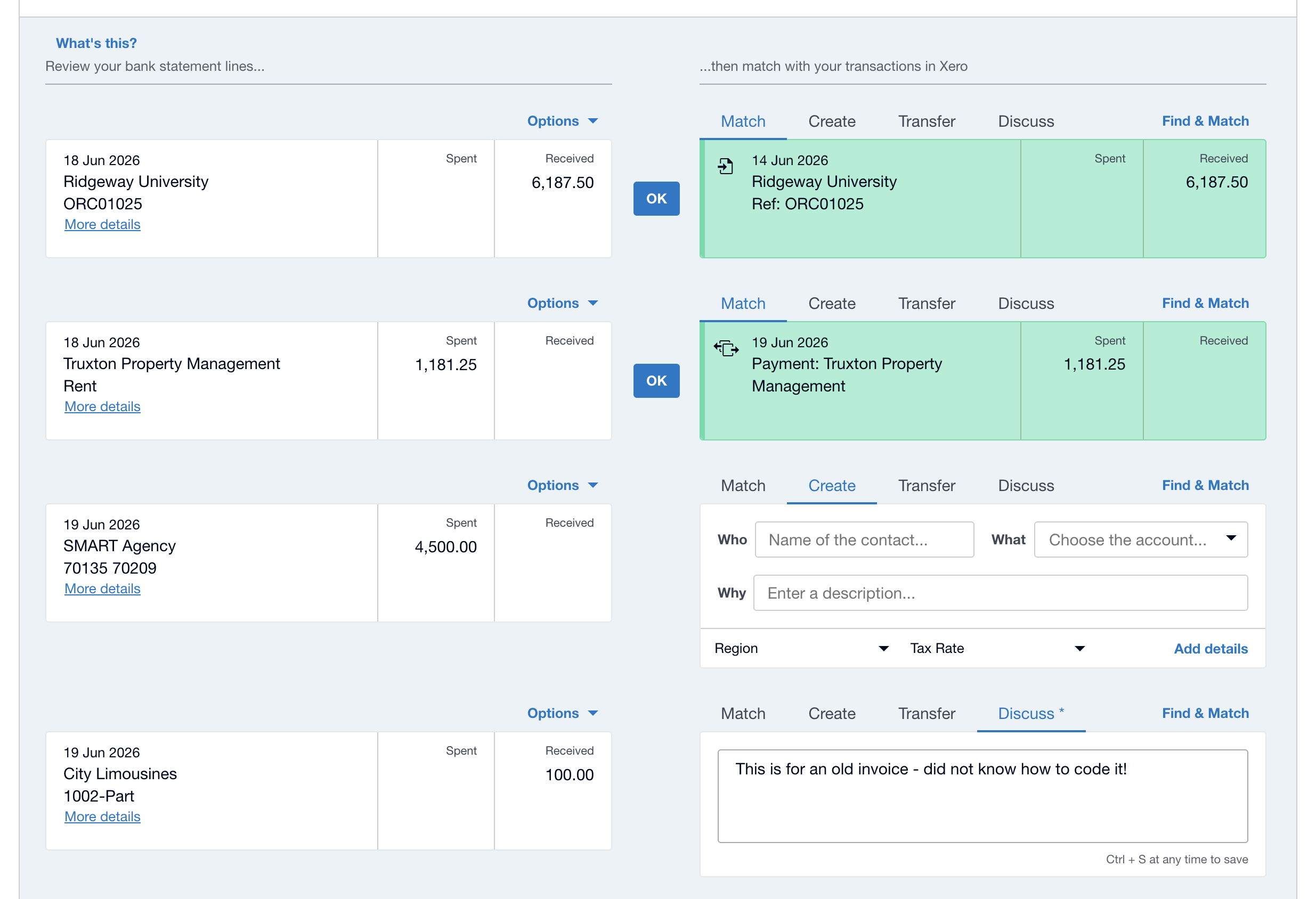
For example:
- A customer pays an invoice.
- The payment appears on your bank statement.
- You tell Xero that the bank transaction matches that invoice.
Once reconciled, the invoice is marked as paid and your accounts stay accurate.
How to reconcile a transaction in Xero
- Log in to Xero.
- Go to Accounting → Bank accounts.
- Select the bank account you want to reconcile.
- Click Reconcile.
- Find the bank transaction.
- Xero will often suggest a match automatically.
- If the suggested match is correct, click OK.
- If not, search for the correct invoice, bill or transaction and confirm the match.
The transaction is now reconciled!
If Xero can’t find a match
Sometimes Xero won’t suggest the correct transaction. In that case you can:
- Search for an existing invoice or bill.
- Create a new transaction if one doesn’t already exist.
- Split the payment if it relates to multiple invoices.
- Use a bank rule for recurring transactions.
Taking a moment to match the correct transaction helps keep your accounts accurate.
Tips for faster reconciliation
- Import your bank feeds automatically.
- Reconcile transactions regularly instead of letting them build up.
- Create bank rules for common transactions.
- Review suggested matches before accepting them.
Reconciling a few transactions each day is much easier than trying to process hundreds at the end of the month.
Send thank-you emails while reconciling
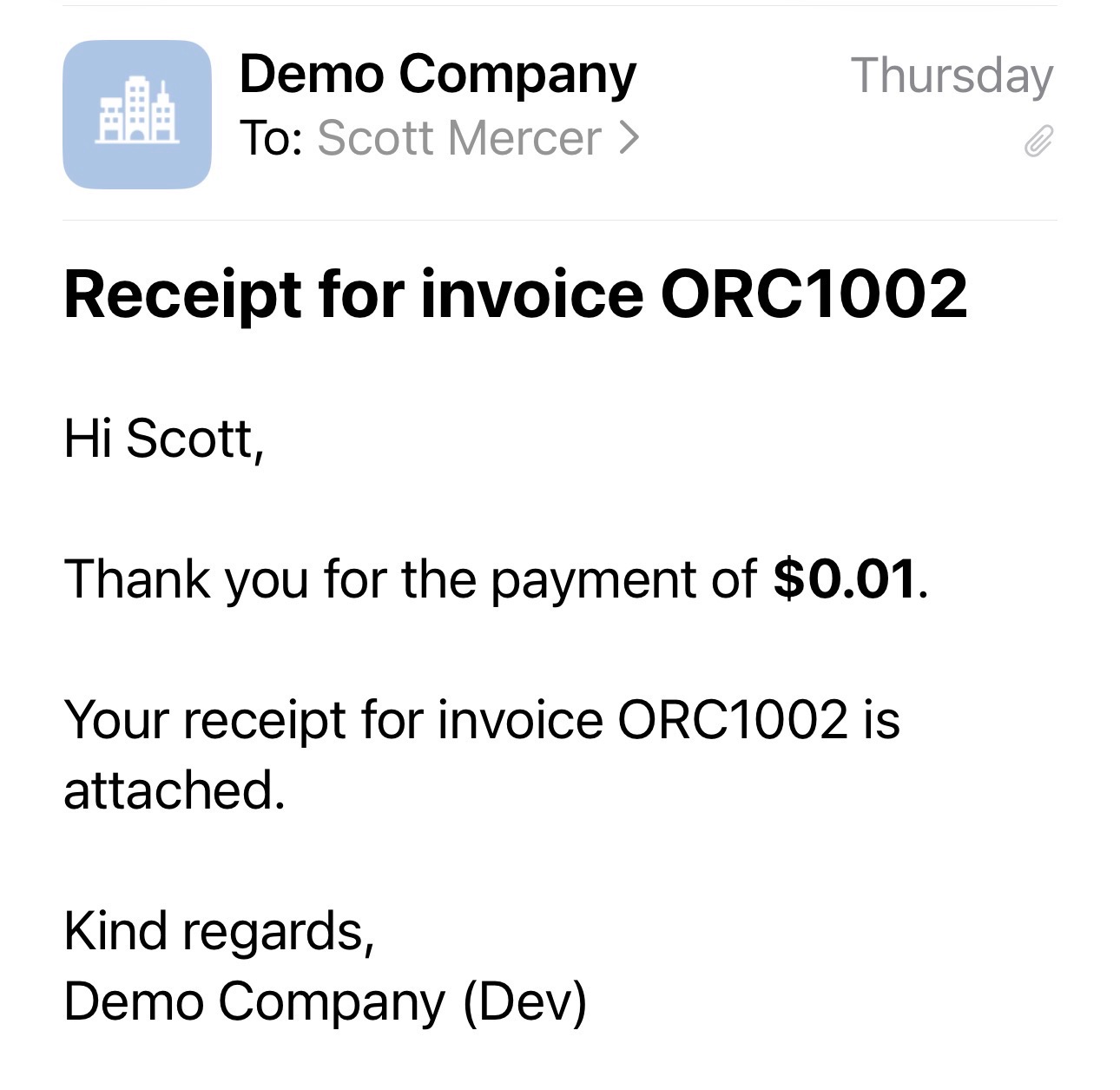
Reconciling a payment updates your accounting records, but it doesn’t tell the other party that you’ve received or sent their money.
The easiest way to do this is with the AutoReceipts Xero add-on. Once connected, it will:
- Email a receipt to customers when they pay an invoice.
- Email remittance advice to suppliers when you pay a bill.
That means no downloading PDFs, composing emails, or remembering to notify the other party. Simply reconcile the payment as usual, and AutoReceipts takes care of the rest.